dear all, dear all, Teknik Audio Video SMK Negeri 3 Tegal sudah membuat komunitas di NetworksBlog, silakan untuk bergabung klik : profil member yang telah bergabung akan tampil diblog Ayo belajar menulis, betul-betul belajar menulis untuk meramaikan komunitas ini! Terima kasih. |
Minggu, 03 Mei 2009
Komunitas Teknik Audio Video SMKN 3 Tegal

Rabu, 15 April 2009
Komunitas Teknik Audio Video SMK Negeri 3 Tegal
| from apps.facebook.com
|


Minggu, 05 April 2009
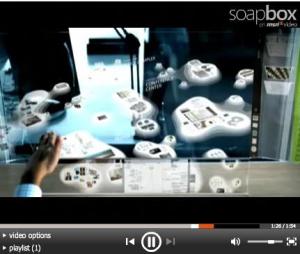
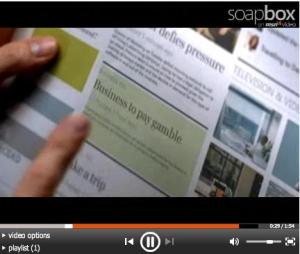
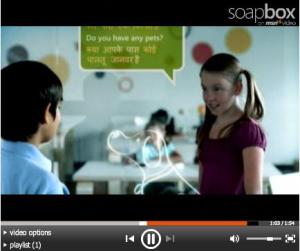
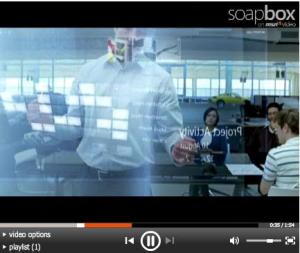
Dunia ini di tahun 2019, menurut Microsoft
|
Rabu, 25 Maret 2009
Animating a Butterfly
| Movie link | Project sit | Project zip |


As we are going to rotate wings in space to make them fly, we need to shift their anchor points toward the axis of symmetry. In After Effects we can use "rulers guides" (thanks Adobe). Select left wing layer in time line. Using "Pan behind Y" tool (see screen shot), move it with mouse towards "center of gravity". Redo the same for right wing. Now we are ready to animate the butterfly
We are going to rotate butterfly wings in 3D space along Y (green arrow) axis so the better view to work with is Top view. Enable Y-axis key-frames in timeline for wings. We need only 3 key frames during 1 second. See screen shots below.
As wings overlap the body, we need to shift body position in Z direction about 10 pixels (see blue highlights on screen shot below).Enable motion blur and make preview in custom view. Butterfly flies already, sure in place, we are going to let it fly using trajectories and the camera in the next step. We could also animate the body by rotating it in X or Z axis.
Pre-comp the comp you want to loop into a new comp that is long enough to hold all the loops you want. Enable time remapping for the new comp. Type "rr" to reveal the keyframes. Set a keyframe at the last frame of the loop. Delete the keyframe at the end of the comp. You should now have keyframes at the start of the loop and the end of the loop. Enter this expression in the time-remapping property: If you use the method I described, you'll lose the first frame of your loop after it plays through once. If that's important, you need to add one more keyframe after the one at the end of the loop and set its value to zero. loop_out("cycle",0) behaves better if the last keyframe is identical to the first one. I've found a work around to this solution: (see the screen shot below), I don't have 100% of speed but I'm close to it and I manage with 2 key frames. From now, I've created a new composition with duration of 15 seconds and thanks to expressions I could layout the 1 second butterfly animation to any length, simply by dragging its right handle in timeline.
|


MAKING TEXT FLY
| Path Text Movie | Particle Playground Movie | Project file: .zip | Project file: .sit |
1. Create a comp-size solid and add the Path Text effect (Effects > Text > Path Text.) 2. In the dialogue box that opens, type some text, and choose a font. Then click OK. 3. In the Effect Controls palette, twirl down Path Options and set Shape Type to Line. 4. Twirl down Paragraph and set Align to Center.  5. Twirl down Advanced. Then twirl down Jitter Settings. Click the stopwatch next to Baseline Jitter Max to set a keyframe at frame zero. If you scrub the value for Baseline Jitter, you'll see that the letters move above and below their original locations (on the baseline). Baseline Jitter Max -- and all the Jitter setting -- animate automatically, without any need for keyframes. In fact, if you give Baseline Jitter a value above zero and then play your comp, you'll see your letters bobbing up and down.
1. Create a comp-size solid and apply the Particle Playground effect (Effect > Simulation > Particle Playground.) The Particle Playground gives you four different ways to create particles: cannon, grid, layer exploder and particle exploder. We're going to use the grid, but the cannon is on by default. If you play your comp, you'll notice little red squares shooting out of a spot in the center of the layer. That's the cannon, and we need to turn it off. But there's no "turn the cannon off button," so we have to trick the cannon into stopping by setting one of its vital properties to zero:  2. Twirl down Cannon and set Particles Per Second to zero. 2. Twirl down Cannon and set Particles Per Second to zero.3. Twirl down Grid. Before you use the grid, make sure that your time marker is on frame zero. The grid can create an alarming number of particles. And as you move forward in time, it adds new particles to the ones that already there. Each frame will add more and more particles, and it's not odd to suddenly find that you've got thousands of particles after moving only a few frames into the comp. This can make AE hang or crash. Normally, the grid places particles in a rectangular grid pattern (surprise, surprise) and then gravity pulls them down, but we're not going to use the grid in a standard way. Instead... 4. Click the word Options at the top of the Effects Controls palette. 5. In the dialogue that opens, click the Edit Grid Text button (not the Edit Cannon Text button.) 6. Type your word, uncheck loop text (if checked, your word will appear over and over again; we only want to see it once), and click Center under Alignment. Then click OK and OK again to exit the Options dialogue.  If you look really closely at the screen, you'll see a tiny red line in the center. That's your text. By default, Particle Playground makes its font-size two, so it's too small to read.  7. In the Grid settings, raise Font Size to a reasonable value. Where's the grid? When you enter Grid Text and choose Center Alignment (step 6, above), you obliterate the grid (if you skip the step of choosing Center, your text will be set on a grid -- each letter in a different grid cell.) Notice that many of the grid options are grayed out. If you very slowly and carefully scrub the time marker forward a few frames, you'll notice that the text falls and leaves trails behind itself. It falls, because gravity pulls it down. The trails are more text particles. Remember, the grid creates new particles on each frame. We need to stop this from happening.  If you've moved it, return the time marker to frame zero. 8. Click the stopwatch by Font Size to set a keyframe in frame zero. 9. Move to the next frame (frame one) by pressing the Page Down key on your keyboard. 10. Set Font Size to zero.  ...which effectively turns off the grid. You can now safely play your comp. You'll one copy of your text fall until it exits the screen. After watching this, return the time marker to frame zero. NOTE: if you're going to field render, select the keyframe in frame zero and then select Animation > Toggle Hold Keyframes from the menu. This will ensure that no interpolation occurs between the two keyframes. 11. Twirl down gravity. You'll see three properties: Force, Force Random Spread and Direction. Force and Direction control the strength of gravity and the direction of gravity's pull. If you're animating helium balloons, you might want to set the Direction to zero, so that the balloons are pulled up instead of down. Force controls the strength of gravity. You might want to decrease this if you're simulating life on the moon. (Decreasing Force to zero turns gravity off.) We're most interested in Force Random Spread. As you experiment with this property, you'll see that the letters move up or down (similar to the Baseline Jitter Max setting in the Path Text technique). This property allows you to create the illusion that some particles are heavier than others (and are therefore more or less affected by gravity.) 12. Click the stopwatch by Force Random Spread to set a keyframe on frame zero. 13. Set Force Random Spread to zero. 14. Move the time marker to one second and increase Force Random Spread to 60. If you play your comp now, you'll notice that the letters fall at different rates. This is an interesting effect, but not quite what we're looking for. 15. Twirl down Repel. Like teenagers at a prom, particles can be repelled or attracted to each other (negative repel values cause attraction.) The more particles are attracted, the more they clump together. The more they're repelled, the more they move apart. We can use repulsion to add more spacing between the letters (which will create a similar effect to Tracking, as in the previous technique.) While Force controls the amount of attraction/repulsion, Force Radius controls how close particles must be to each other before attraction or repulsion occurs (similar to a person's zone of personal space.) 16. Move the time marker to frame zero if necessary, and click the stopwatches by Force and Force Radius (under Repel.)  17. Set both Force and Force Radius to zero. 17. Set both Force and Force Radius to zero.18. Move the time marker to one second. Set Force to 50 and Force Radius to 500. Play your comp to see the letters fly off the screen in many directions. If you don't like the result, try playing with the Force and Force Radius values. The effect is now complete, except it's running in reverse. We want the letters to start off screen and fly in to form a word. So... 23. Click the double-headed arrow button  at the bottom of the timeline to reveal the In, Out, Duration and Stretch panels. at the bottom of the timeline to reveal the In, Out, Duration and Stretch panels.24. Set stretch to -100% (negative 100%).
---Marcus Geduld Feel free to discuss these techniques in the Adobe After Effects forum at Creativecow.net. |

 7. Click the stopwatch by Tracking to set a keyframe at frame zero.

Langganan:
Postingan (Atom)